> ## Documentation Index
> Fetch the complete documentation index at: https://oxenai-eric-document-openclaw.mintlify.site/llms.txt
> Use this file to discover all available pages before exploring further.
# 🔎 Compute Text Embeddings
> How to compute vector embeddings for a text dataset on a GPU.
Embeddings are a way to represent text in a numerical format as vectors. They are used in a variety of applications, including search and retrieval, clustering, labeling data and anomaly detection.
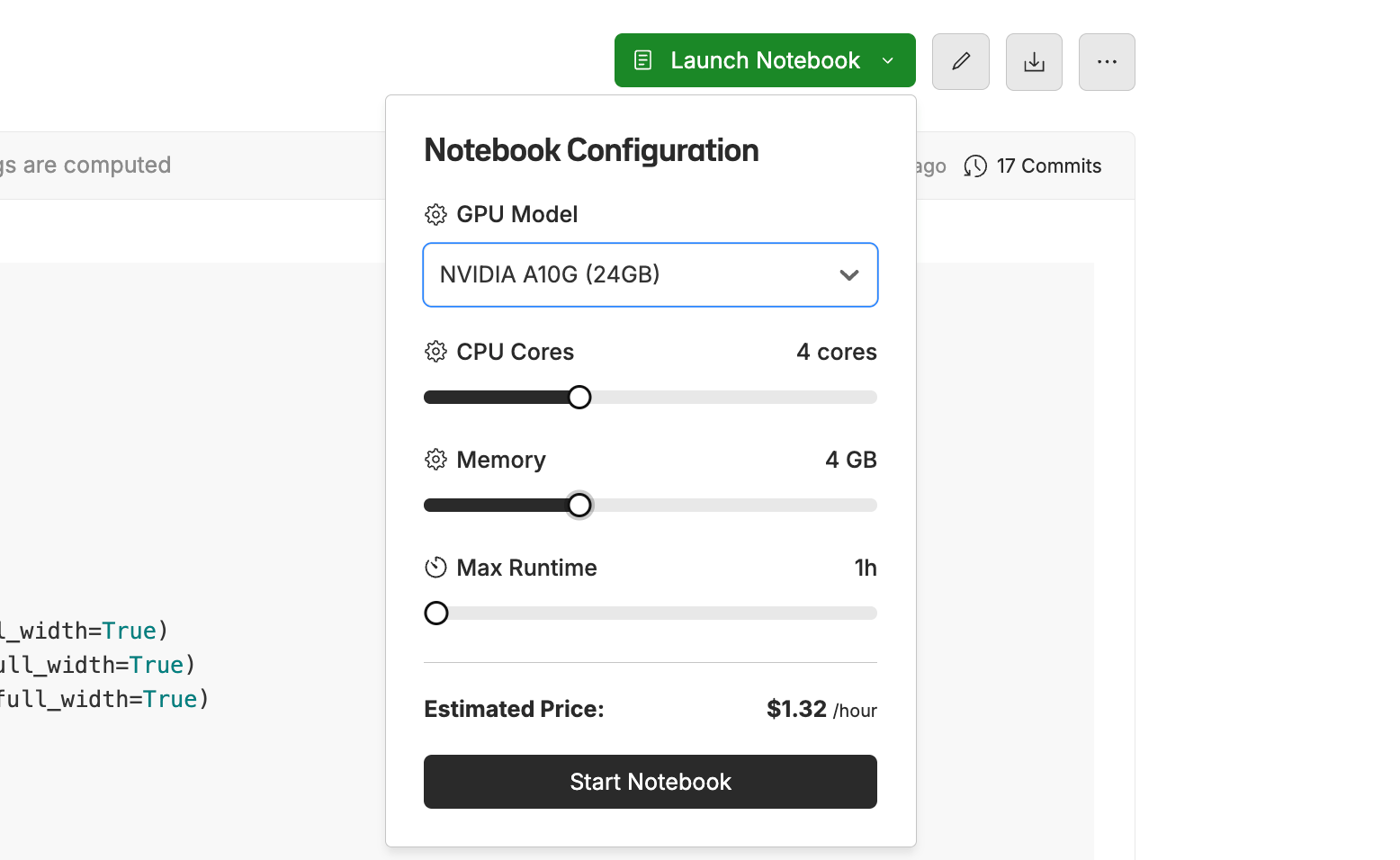
Notebooks make it easy and fast to compute embeddings for a dataset on a GPU. If you want to follow along, you can checkout [this notebook](https://www.oxen.ai/datasets/MarimoNotebooks/file/main/compute_text_embeddings.py) and run it in your own Oxen.ai account. When running this example, try an A10 GPU with 4GB of memory and 4 CPU cores. This will allow us to compute over 1,000 embeddings per second 🔥
 Of the time of writing, you need a specific version of sentence transformers and transformers for this code to work.
```bash theme={null}
pip install transformers==4.51.3
pip install sentence-transformers
```
# Setting Up The Interface
[Marimo](https://marimo.io) allows you to define UI elements that can be used to define the input repository, dataset, model name and number of rows to compute embeddings for. First lets setup a simple form that allows us to kick off the embedding computation.
Of the time of writing, you need a specific version of sentence transformers and transformers for this code to work.
```bash theme={null}
pip install transformers==4.51.3
pip install sentence-transformers
```
# Setting Up The Interface
[Marimo](https://marimo.io) allows you to define UI elements that can be used to define the input repository, dataset, model name and number of rows to compute embeddings for. First lets setup a simple form that allows us to kick off the embedding computation.
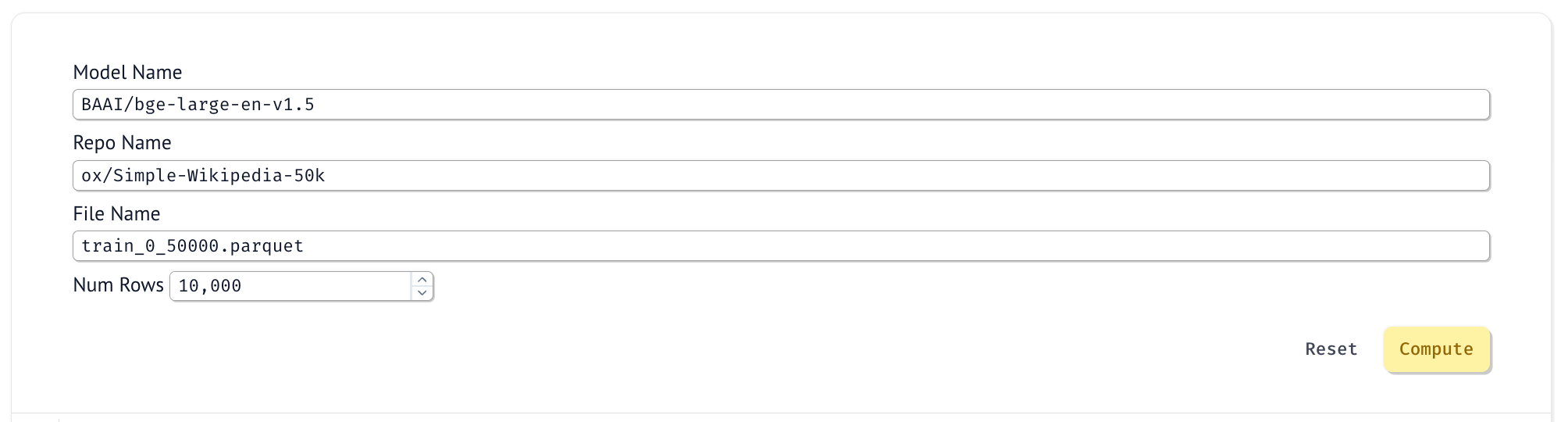 Use the following code in your first cell to setup the UI.
```python theme={null}
import marimo as mo
model_name_ui = mo.ui.text(value="BAAI/bge-large-en-v1.5", full_width=True)
oxen_repo_name = mo.ui.text(value="ox/Simple-Wikipedia-50k", full_width=True)
oxen_dataset_name = mo.ui.text(value="train_0_50000.parquet", full_width=True)
num_rows = mo.ui.number(value=10000)
run_form = mo.md(
"""
Model Name
{model_name}
Repo Name
{oxen_repo_name}
File Name
{oxen_dataset_name}
Num Rows
{num_rows}
"""
).batch(
oxen_repo_name=oxen_repo_name,
oxen_dataset_name=oxen_dataset_name,
model_name=model_name_ui,
num_rows=num_rows
).form(
submit_button_label="Compute",
bordered=False,
show_clear_button=True,
clear_button_label="Reset"
)
run_form
```
To wait for the button to be clicked, use the `mo.stop` function and check if the `run_form.value` is `None`.
```python theme={null}
# If the button is not pressed, stop execution
mo.stop(
run_form.value is None
)
```
Then download the data using the values from the form and the [Remote Repo](/python-api/remote_repo) class.
```python theme={null}
from oxen import RemoteRepo
import pandas as pd
repo = RemoteRepo(oxen_repo_name.value)
repo.download(oxen_dataset_name.value, revision="main")
df = pd.read_parquet(oxen_dataset_name.value)
```
# Compute Embeddings
This example will use the `sentence_transformers` library to compute the embeddings with the default model as `BAAI/bge-large-en-v1.5`. Find more information about the model [here](https://huggingface.co/BAAI/bge-large-en-v1.5).
```python theme={null}
from sentence_transformers import SentenceTransformer
model_name = model_name_ui.value
print(f"Loading: {model_name}")
model = SentenceTransformer(model_name, device="cuda")
print(f"Model Loaded: {model_name}")
```
Now we can compute the embeddings for the dataset. We will compute them in batches to take full advantage of the GPU. In this example, we are just computing the embeddings for the `title` column, but you can compute the embeddings for any text column in the dataset. The embeddings will now be in the `result_df` data frame in a new column called `embedding`.
```python theme={null}
# How many embeddings to compute at once
batch_size = 128
# Determine how many rows you want to process
rows_to_process = num_rows.value
# Copy the data frame
result_df = df.iloc[:rows_to_process].copy()
computed_embeddings = []
# Process the dataframe in batches
with mo.status.progress_bar(total=len(result_df)) as bar:
for i in range(0, len(result_df), batch_size):
if i % 10 == 0:
print(f"Computed {i} embeddings")
# Get the current batch
batch = result_df.iloc[i:i+batch_size]
# Extract texts from the batch
texts = batch['title'].tolist()
# Compute embeddings for the batch
batch_embeddings = model.encode(texts, normalize_embeddings=True)
# Add the batch embeddings to the overall list
computed_embeddings.extend(batch_embeddings)
bar.update(increment=batch_size)
# Add embeddings to the data frame
result_df['embedding'] = computed_embeddings
```
`mo.status.progress_bar` is used to show a progress bar in the UI as we compute the embeddings.
Use the following code in your first cell to setup the UI.
```python theme={null}
import marimo as mo
model_name_ui = mo.ui.text(value="BAAI/bge-large-en-v1.5", full_width=True)
oxen_repo_name = mo.ui.text(value="ox/Simple-Wikipedia-50k", full_width=True)
oxen_dataset_name = mo.ui.text(value="train_0_50000.parquet", full_width=True)
num_rows = mo.ui.number(value=10000)
run_form = mo.md(
"""
Model Name
{model_name}
Repo Name
{oxen_repo_name}
File Name
{oxen_dataset_name}
Num Rows
{num_rows}
"""
).batch(
oxen_repo_name=oxen_repo_name,
oxen_dataset_name=oxen_dataset_name,
model_name=model_name_ui,
num_rows=num_rows
).form(
submit_button_label="Compute",
bordered=False,
show_clear_button=True,
clear_button_label="Reset"
)
run_form
```
To wait for the button to be clicked, use the `mo.stop` function and check if the `run_form.value` is `None`.
```python theme={null}
# If the button is not pressed, stop execution
mo.stop(
run_form.value is None
)
```
Then download the data using the values from the form and the [Remote Repo](/python-api/remote_repo) class.
```python theme={null}
from oxen import RemoteRepo
import pandas as pd
repo = RemoteRepo(oxen_repo_name.value)
repo.download(oxen_dataset_name.value, revision="main")
df = pd.read_parquet(oxen_dataset_name.value)
```
# Compute Embeddings
This example will use the `sentence_transformers` library to compute the embeddings with the default model as `BAAI/bge-large-en-v1.5`. Find more information about the model [here](https://huggingface.co/BAAI/bge-large-en-v1.5).
```python theme={null}
from sentence_transformers import SentenceTransformer
model_name = model_name_ui.value
print(f"Loading: {model_name}")
model = SentenceTransformer(model_name, device="cuda")
print(f"Model Loaded: {model_name}")
```
Now we can compute the embeddings for the dataset. We will compute them in batches to take full advantage of the GPU. In this example, we are just computing the embeddings for the `title` column, but you can compute the embeddings for any text column in the dataset. The embeddings will now be in the `result_df` data frame in a new column called `embedding`.
```python theme={null}
# How many embeddings to compute at once
batch_size = 128
# Determine how many rows you want to process
rows_to_process = num_rows.value
# Copy the data frame
result_df = df.iloc[:rows_to_process].copy()
computed_embeddings = []
# Process the dataframe in batches
with mo.status.progress_bar(total=len(result_df)) as bar:
for i in range(0, len(result_df), batch_size):
if i % 10 == 0:
print(f"Computed {i} embeddings")
# Get the current batch
batch = result_df.iloc[i:i+batch_size]
# Extract texts from the batch
texts = batch['title'].tolist()
# Compute embeddings for the batch
batch_embeddings = model.encode(texts, normalize_embeddings=True)
# Add the batch embeddings to the overall list
computed_embeddings.extend(batch_embeddings)
bar.update(increment=batch_size)
# Add embeddings to the data frame
result_df['embedding'] = computed_embeddings
```
`mo.status.progress_bar` is used to show a progress bar in the UI as we compute the embeddings.
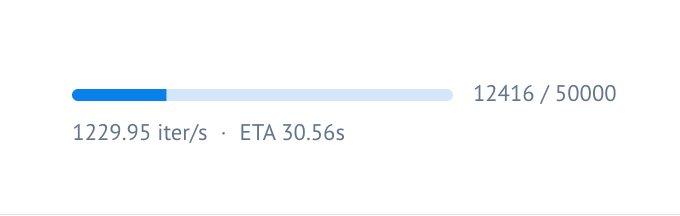 You should see the model computing over 1,000 embeddings per second 🔥
# Save the Embeddings
Once you have computed the embeddings, save them to your Oxen.ai repository to share with your team. Oxen.ai will version the embeddings and allow you to track changes so that you can try out different models and configurations without worrying about losing your previous work.
```python theme={null}
def save_embeddings(df, username="YOUR_USERNAME", repo_name="YOUR_REPO_NAME", filename="embeddings.parquet", branch="main"):
# Connect to the remote repo
repo = RemoteRepo(f"{username}/{repo_name}")
# Checkout the branch
repo.create_checkout_branch(branch)
# Save data to disk
df.to_parquet(filename, index=False)
# Check if the file exists or has changed on the remote
if not repo.file_exists(filename) or repo.file_has_changes(filename):
# Stage/upload data to remote repository
repo.add(filename)
# Commit data with a message
repo.commit(f"Adding {filename}")
else:
print("File has no changes")
```
```python theme={null}
save_embeddings(result_df, username="YOUR_USERNAME", repo_name="YOUR_REPO_NAME", filename="embeddings.parquet", branch="embeddings")
```
# Search Nearest Neighbors
To check how well the embeddings encode the text, let's build a little search tool. We will use `cosine_similarity` from `sklearn` to build a simple nearest neighbor search.
```python theme={null}
from sklearn.metrics.pairwise import cosine_similarity
import numpy as np
def embedding_similarity(df, query_embedding, text_column='text', embedding_column='embedding', top_k=5):
# Make sure query_embedding is a 2D array for sklearn's cosine_similarity
if len(query_embedding.shape) == 1:
query_embedding = query_embedding.reshape(1, -1)
# Stack all embeddings from the DataFrame into a 2D array
embeddings_matrix = np.vstack(df[embedding_column].values)
# Calculate cosine similarity between query and all embeddings
similarities = cosine_similarity(query_embedding, embeddings_matrix).flatten()
# Create a results DataFrame with similarities
results_df = df.copy()
results_df['similarity_score'] = similarities
# Sort by similarity score (descending) and get top_k results
results_df = results_df.sort_values('similarity_score', ascending=False).head(top_k)
# Keep only text and similarity score for cleaner output
return results_df[[text_column, 'similarity_score']]
```
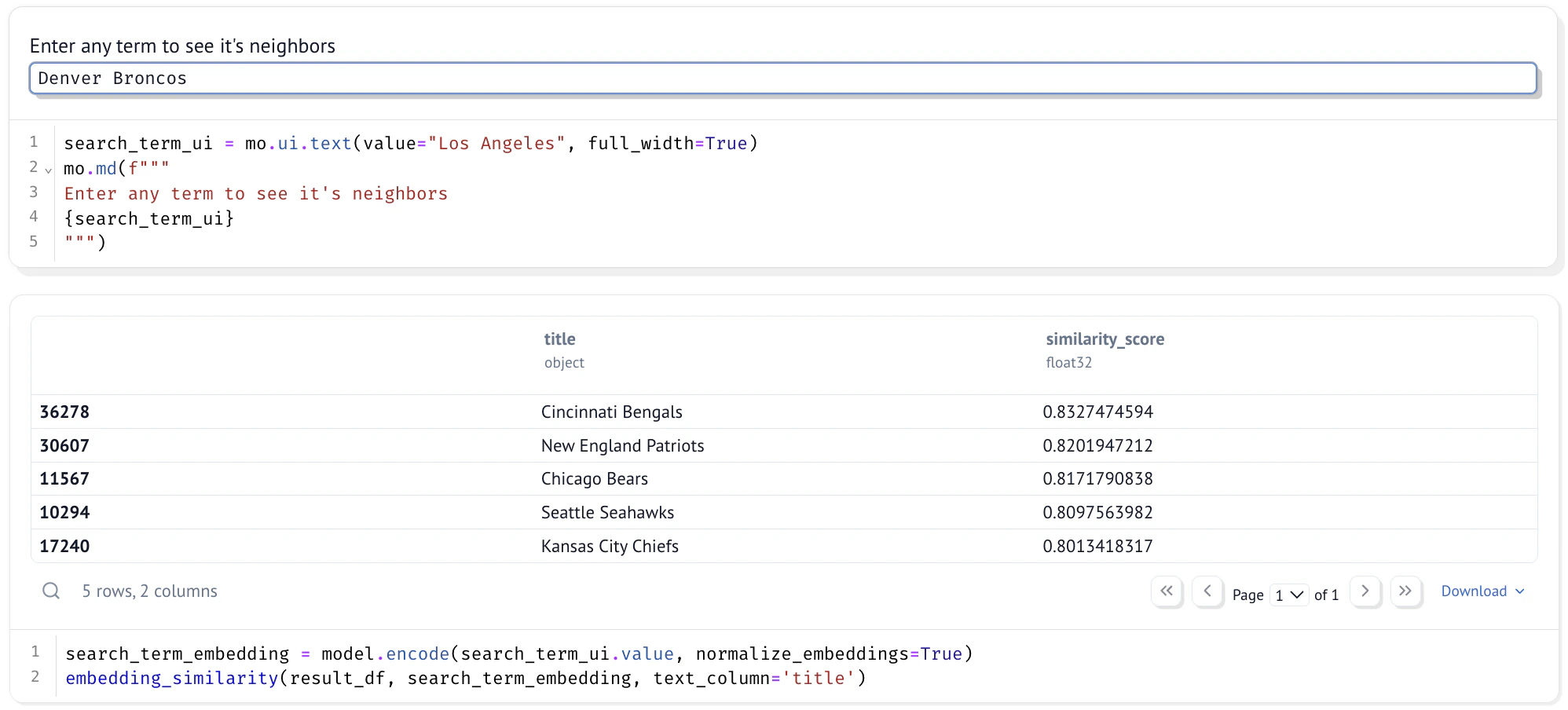
Now we can use the `embedding_similarity` function to search for the nearest neighbors of a query.
```python theme={null}
search_term_embedding = model.encode(search_term_ui.value, normalize_embeddings=True)
embedding_similarity(result_df, search_term_embedding, text_column='title')
```
Build a text input so that we can enter any term we want and see similar titles.
```python theme={null}
search_term_ui = mo.ui.text(value="Denver Broncos", full_width=True)
mo.md(f"""
Enter any term to see it's neighbors
{search_term_ui}
""")
```
You should see the model computing over 1,000 embeddings per second 🔥
# Save the Embeddings
Once you have computed the embeddings, save them to your Oxen.ai repository to share with your team. Oxen.ai will version the embeddings and allow you to track changes so that you can try out different models and configurations without worrying about losing your previous work.
```python theme={null}
def save_embeddings(df, username="YOUR_USERNAME", repo_name="YOUR_REPO_NAME", filename="embeddings.parquet", branch="main"):
# Connect to the remote repo
repo = RemoteRepo(f"{username}/{repo_name}")
# Checkout the branch
repo.create_checkout_branch(branch)
# Save data to disk
df.to_parquet(filename, index=False)
# Check if the file exists or has changed on the remote
if not repo.file_exists(filename) or repo.file_has_changes(filename):
# Stage/upload data to remote repository
repo.add(filename)
# Commit data with a message
repo.commit(f"Adding {filename}")
else:
print("File has no changes")
```
```python theme={null}
save_embeddings(result_df, username="YOUR_USERNAME", repo_name="YOUR_REPO_NAME", filename="embeddings.parquet", branch="embeddings")
```
# Search Nearest Neighbors
To check how well the embeddings encode the text, let's build a little search tool. We will use `cosine_similarity` from `sklearn` to build a simple nearest neighbor search.
```python theme={null}
from sklearn.metrics.pairwise import cosine_similarity
import numpy as np
def embedding_similarity(df, query_embedding, text_column='text', embedding_column='embedding', top_k=5):
# Make sure query_embedding is a 2D array for sklearn's cosine_similarity
if len(query_embedding.shape) == 1:
query_embedding = query_embedding.reshape(1, -1)
# Stack all embeddings from the DataFrame into a 2D array
embeddings_matrix = np.vstack(df[embedding_column].values)
# Calculate cosine similarity between query and all embeddings
similarities = cosine_similarity(query_embedding, embeddings_matrix).flatten()
# Create a results DataFrame with similarities
results_df = df.copy()
results_df['similarity_score'] = similarities
# Sort by similarity score (descending) and get top_k results
results_df = results_df.sort_values('similarity_score', ascending=False).head(top_k)
# Keep only text and similarity score for cleaner output
return results_df[[text_column, 'similarity_score']]
```
Now we can use the `embedding_similarity` function to search for the nearest neighbors of a query.
```python theme={null}
search_term_embedding = model.encode(search_term_ui.value, normalize_embeddings=True)
embedding_similarity(result_df, search_term_embedding, text_column='title')
```
Build a text input so that we can enter any term we want and see similar titles.
```python theme={null}
search_term_ui = mo.ui.text(value="Denver Broncos", full_width=True)
mo.md(f"""
Enter any term to see it's neighbors
{search_term_ui}
""")
```