> ## Documentation Index
> Fetch the complete documentation index at: https://oxenai-eric-document-openclaw.mintlify.site/llms.txt
> Use this file to discover all available pages before exploring further.
# 🧪 Generate Synthetic Datasets
> Build and version a synthetic dataset to train a model on
It can be expensive and time-consuming to collect or label data. Synthetic data can either augment your existing data, help filter down a data distribution, or generate a completely new dataset. Be careful, the data generated is not always 100% accurate, but can give you a good jumping off point. You should always ***validate and version*** the data you generate, so that you can track changes and roll back if the data is not what you expected.
Follow along with the [example notebook](https://www.oxen.ai/datasets/MarimoNotebooks/file/main/synthetic_data.py) by running it in your own Oxen.ai account.
## Setting Up the Dataset
In this case, we will be constructing a synthetic dataset of customer support conversations. Let's assume you have *no data* to start with. As long as you know the types of problems your customers are having, you can generate a starting dataset of fake names, roles, problems, and experience levels.
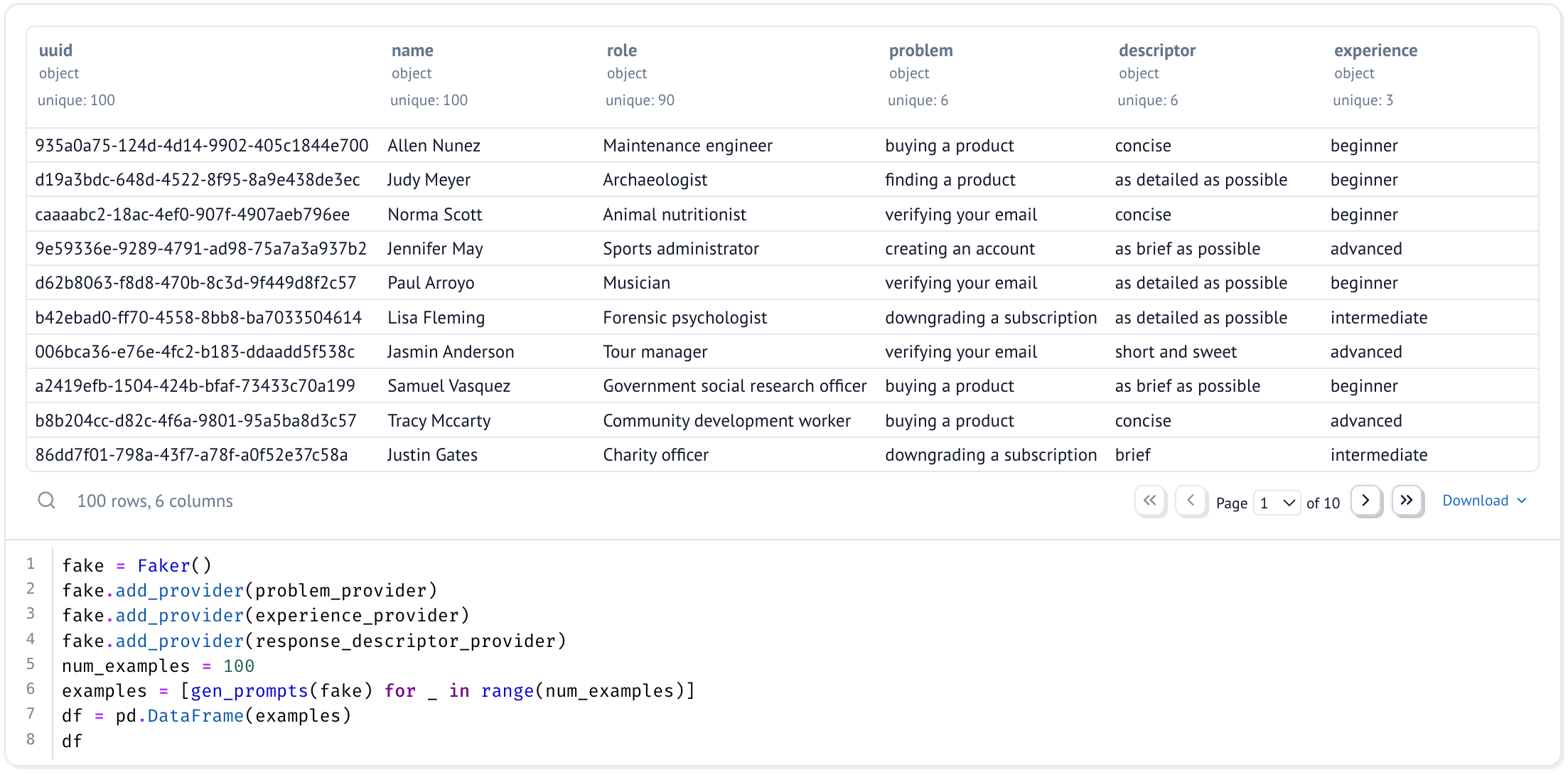 We will be using the `faker` library to generate a starting dataset. We can then run this dataset through an LLM to generate prompts and responses as if they were both the customer and the support agent. `Faker` has a lot of built in functionality, such as the ability to generate fake names, addresses, phone numbers, and more.
```python theme={null}
from faker import Faker
from faker.providers import DynamicProvider
fake = Faker()
```
We will be extending it using the `DynamicProvider` interface to create our own.
```python theme={null}
# You are a client of company X and you are having trouble...
problem_provider = DynamicProvider(
provider_name="problem",
elements=[
"verifying your email",
"canceling a subscribtion",
"buying a product",
"finding a product",
"creating an account",
"downgrading a subscription",
],
)
experience_provider = DynamicProvider(
provider_name="experience",
elements=[
"beginner",
"intermediate",
"advanced",
],
)
response_descriptor_provider = DynamicProvider(
provider_name="response_descriptor",
elements=[
"brief",
"as brief as possible",
"verbose",
"short and sweet",
"concise",
"as detailed as possible",
],
)
```
You can now call these new providers to generate data.
```python theme={null}
problem = fake.problem()
experience = fake.experience()
descriptor = fake.response_descriptor()
```
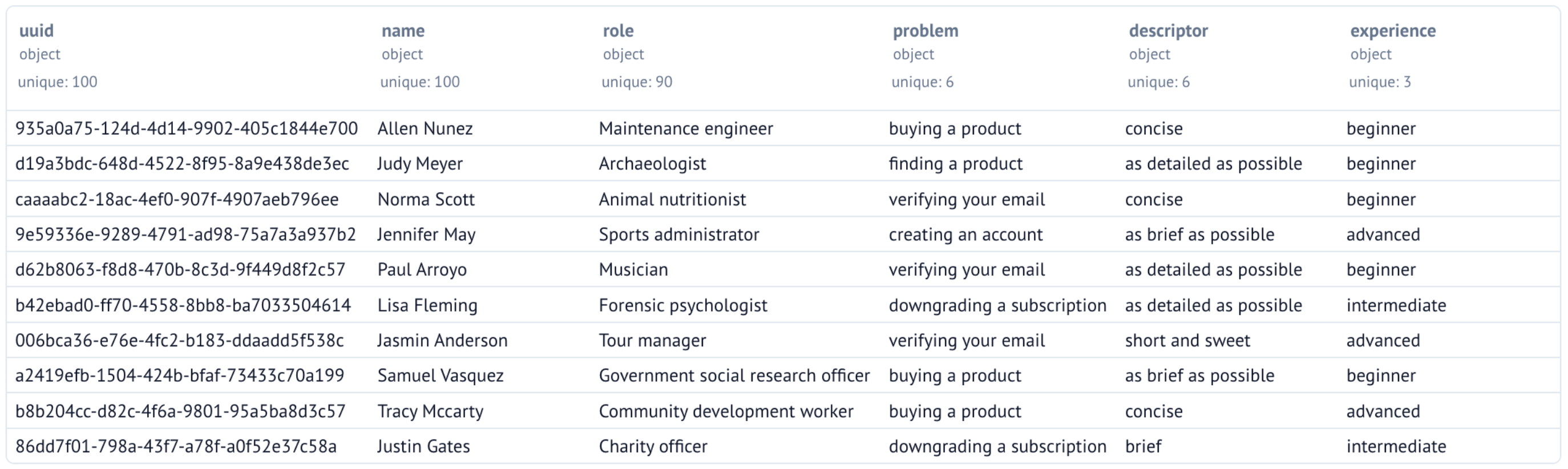
Each row of our dataset will now have a uuid, name, role, problem, descriptor, and experience.
```python theme={null}
import uuid
def gen_row(fake: Faker):
role = fake.job()
name = fake.name() # Name just provides some randomness 🤷♂️
problem = fake.problem()
experience = fake.experience()
descriptor = fake.response_descriptor()
return {
"uuid": str(uuid.uuid4()),
"name": name,
"role": role,
"problem": problem,
"descriptor": descriptor,
"experience": experience
}
```
Now we can generate a starting dataset of 100 rows.
```python theme={null}
num_examples = 100
examples = [gen_row(fake) for _ in range(num_examples)]
df = pd.DataFrame(examples)
df.head()
```
We will be using the `faker` library to generate a starting dataset. We can then run this dataset through an LLM to generate prompts and responses as if they were both the customer and the support agent. `Faker` has a lot of built in functionality, such as the ability to generate fake names, addresses, phone numbers, and more.
```python theme={null}
from faker import Faker
from faker.providers import DynamicProvider
fake = Faker()
```
We will be extending it using the `DynamicProvider` interface to create our own.
```python theme={null}
# You are a client of company X and you are having trouble...
problem_provider = DynamicProvider(
provider_name="problem",
elements=[
"verifying your email",
"canceling a subscribtion",
"buying a product",
"finding a product",
"creating an account",
"downgrading a subscription",
],
)
experience_provider = DynamicProvider(
provider_name="experience",
elements=[
"beginner",
"intermediate",
"advanced",
],
)
response_descriptor_provider = DynamicProvider(
provider_name="response_descriptor",
elements=[
"brief",
"as brief as possible",
"verbose",
"short and sweet",
"concise",
"as detailed as possible",
],
)
```
You can now call these new providers to generate data.
```python theme={null}
problem = fake.problem()
experience = fake.experience()
descriptor = fake.response_descriptor()
```
Each row of our dataset will now have a uuid, name, role, problem, descriptor, and experience.
```python theme={null}
import uuid
def gen_row(fake: Faker):
role = fake.job()
name = fake.name() # Name just provides some randomness 🤷♂️
problem = fake.problem()
experience = fake.experience()
descriptor = fake.response_descriptor()
return {
"uuid": str(uuid.uuid4()),
"name": name,
"role": role,
"problem": problem,
"descriptor": descriptor,
"experience": experience
}
```
Now we can generate a starting dataset of 100 rows.
```python theme={null}
num_examples = 100
examples = [gen_row(fake) for _ in range(num_examples)]
df = pd.DataFrame(examples)
df.head()
```
 ## Versioning the Dataset
Now that we have our starting dataset, we should version it, so that we can play around with different prompts and models. You can use the `upload` method to upload a file to your repository with a commit message.
```python theme={null}
from oxen.datasets import upload
file_name = "synthetic_data.parquet"
df.to_parquet(file_name)
upload("YOUR_NAMESPACE/YOUR_REPO_NAME", file_name, "Adding synthetic data")
```
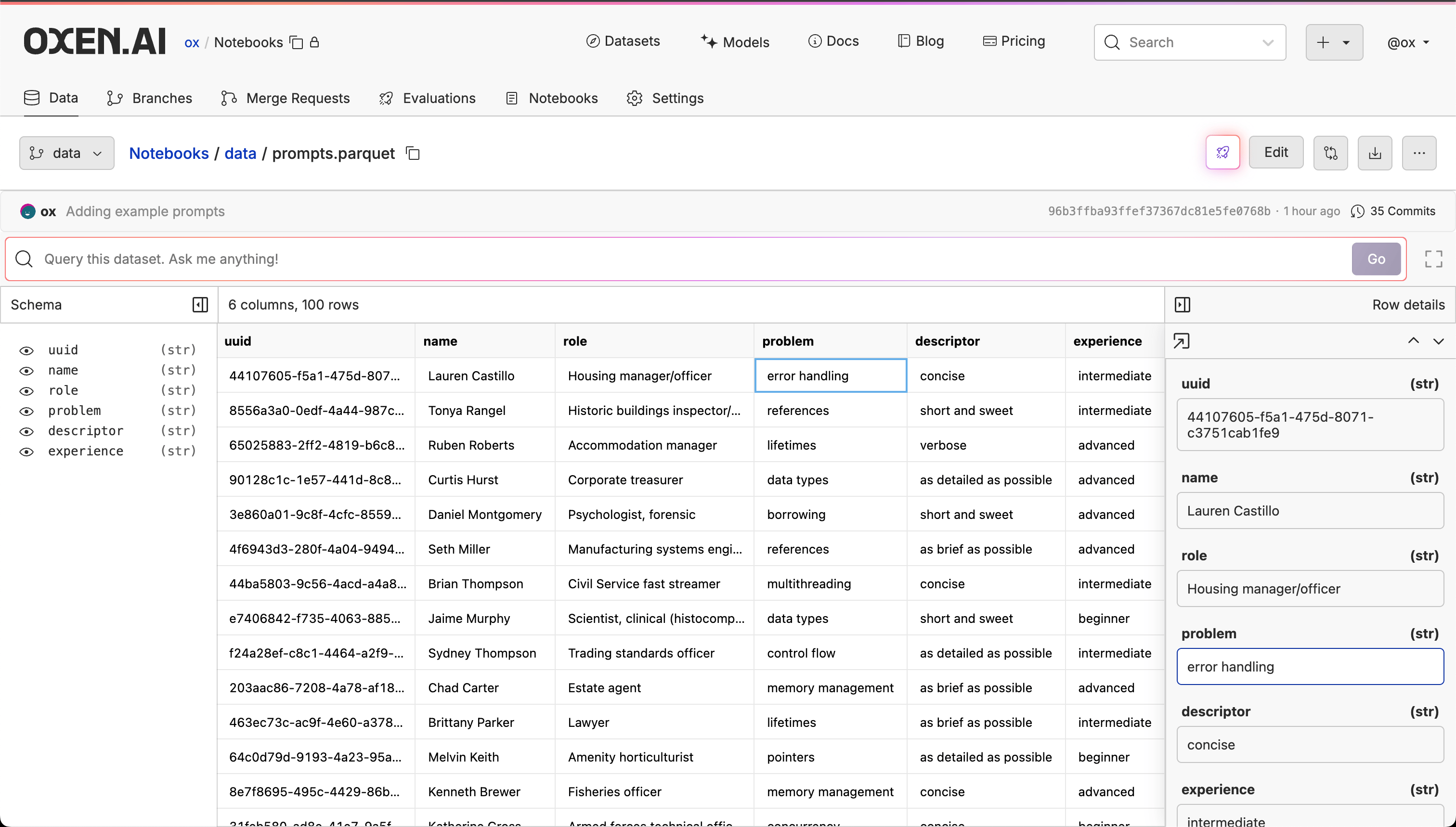
Once the data is uploaded, you can view and query the generated dataset from Oxen.ai's [Dataset UI](/getting-started/datasets).
## Versioning the Dataset
Now that we have our starting dataset, we should version it, so that we can play around with different prompts and models. You can use the `upload` method to upload a file to your repository with a commit message.
```python theme={null}
from oxen.datasets import upload
file_name = "synthetic_data.parquet"
df.to_parquet(file_name)
upload("YOUR_NAMESPACE/YOUR_REPO_NAME", file_name, "Adding synthetic data")
```
Once the data is uploaded, you can view and query the generated dataset from Oxen.ai's [Dataset UI](/getting-started/datasets).
 ## Running an LLM
If you want to try out different prompts and models without writing any code, you can use Oxen.ai's [Model Inference](https://oxen.ai/ai/models) feature. Click the 🚀 button on the right of the screen to open the inference UI.
## Running an LLM
If you want to try out different prompts and models without writing any code, you can use Oxen.ai's [Model Inference](https://oxen.ai/ai/models) feature. Click the 🚀 button on the right of the screen to open the inference UI.
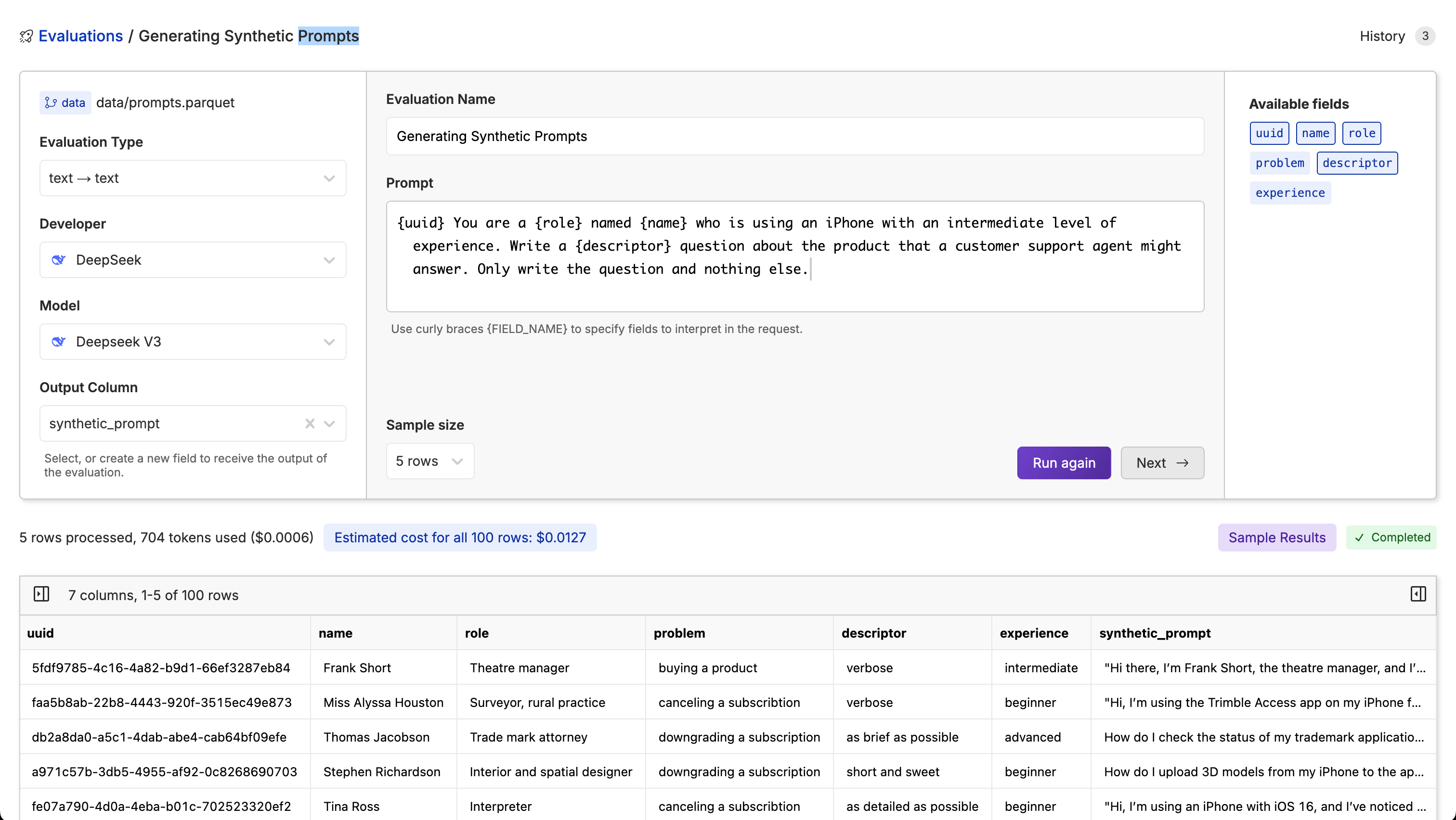 In the example above, we are using [DeepSeek-v3](https://www.oxen.ai/ai/models/deepseek-v3) to generate synthetic customer questions about an iPhone with the following prompt:
```markdown theme={null}
{uuid} You are a {role} named {name} who is using an iPhone with an intermediate level of experience. Write a {descriptor} question about the product that a customer support agent might answer. Only write the question and nothing else.
```
By default, Oxen.ai samples 5 rows from the dataset, so that you can get a sense of how well the model is performing. You will also see an estimated price for how much the inference will cost over the entire dataset.
In the example above, we are using [DeepSeek-v3](https://www.oxen.ai/ai/models/deepseek-v3) to generate synthetic customer questions about an iPhone with the following prompt:
```markdown theme={null}
{uuid} You are a {role} named {name} who is using an iPhone with an intermediate level of experience. Write a {descriptor} question about the product that a customer support agent might answer. Only write the question and nothing else.
```
By default, Oxen.ai samples 5 rows from the dataset, so that you can get a sense of how well the model is performing. You will also see an estimated price for how much the inference will cost over the entire dataset.
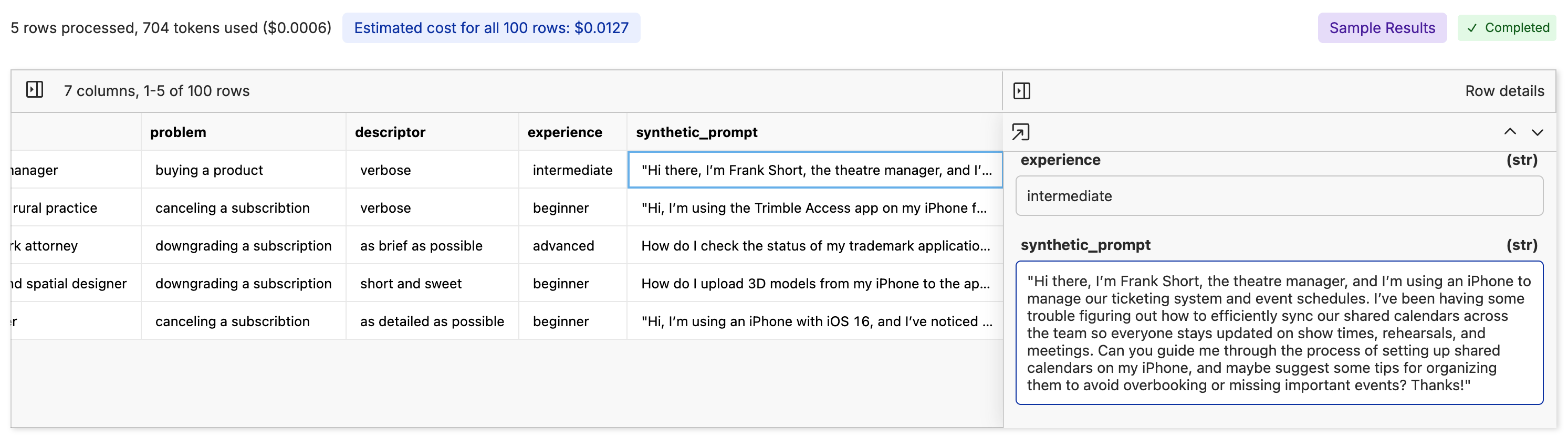 Once you feel confident in the sample results, you can run the inference on the entire dataset by clicking the `Next ->` button. This will allow you to pick an output branch, file, and write a commit message once the run is complete.
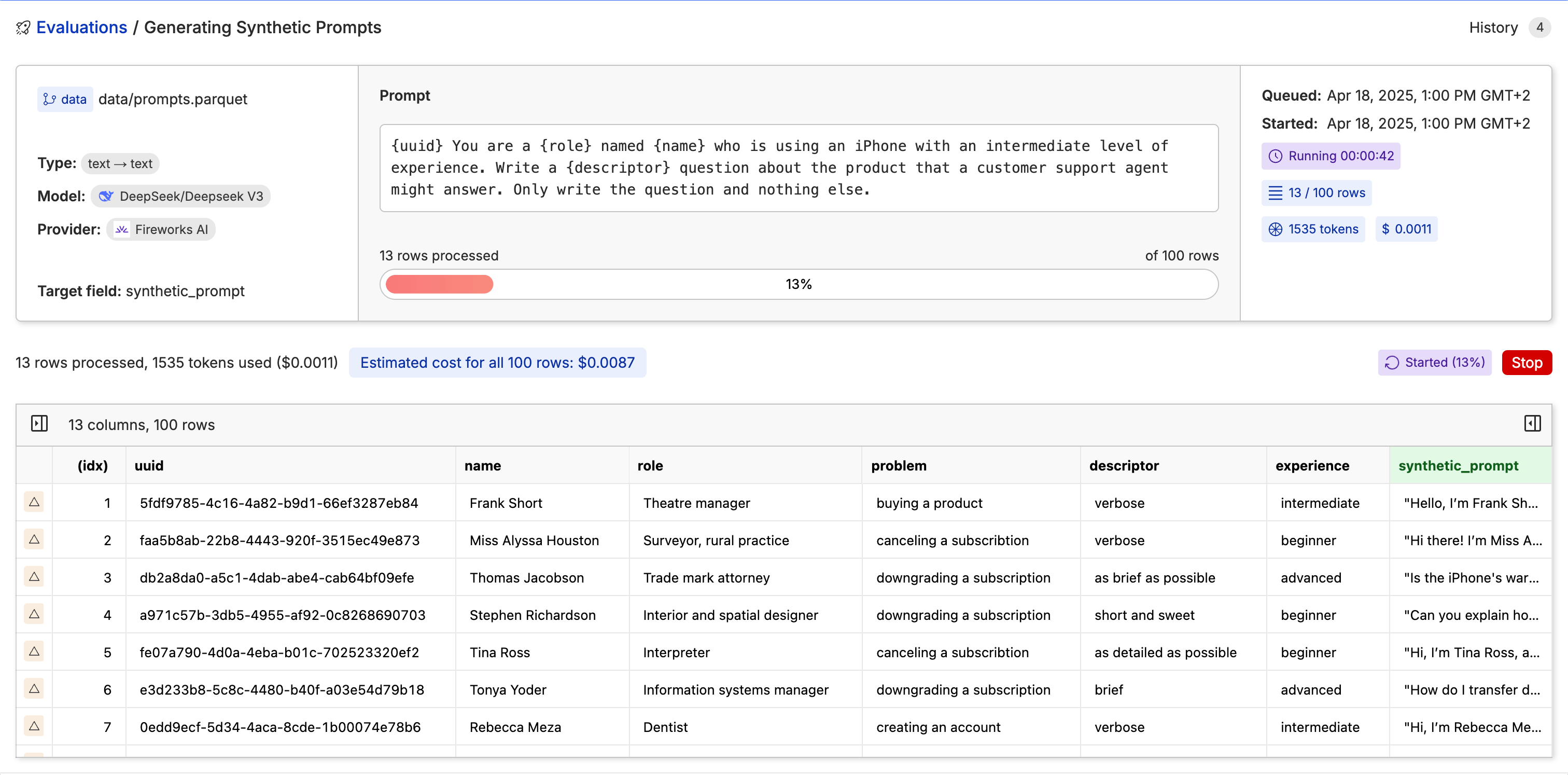
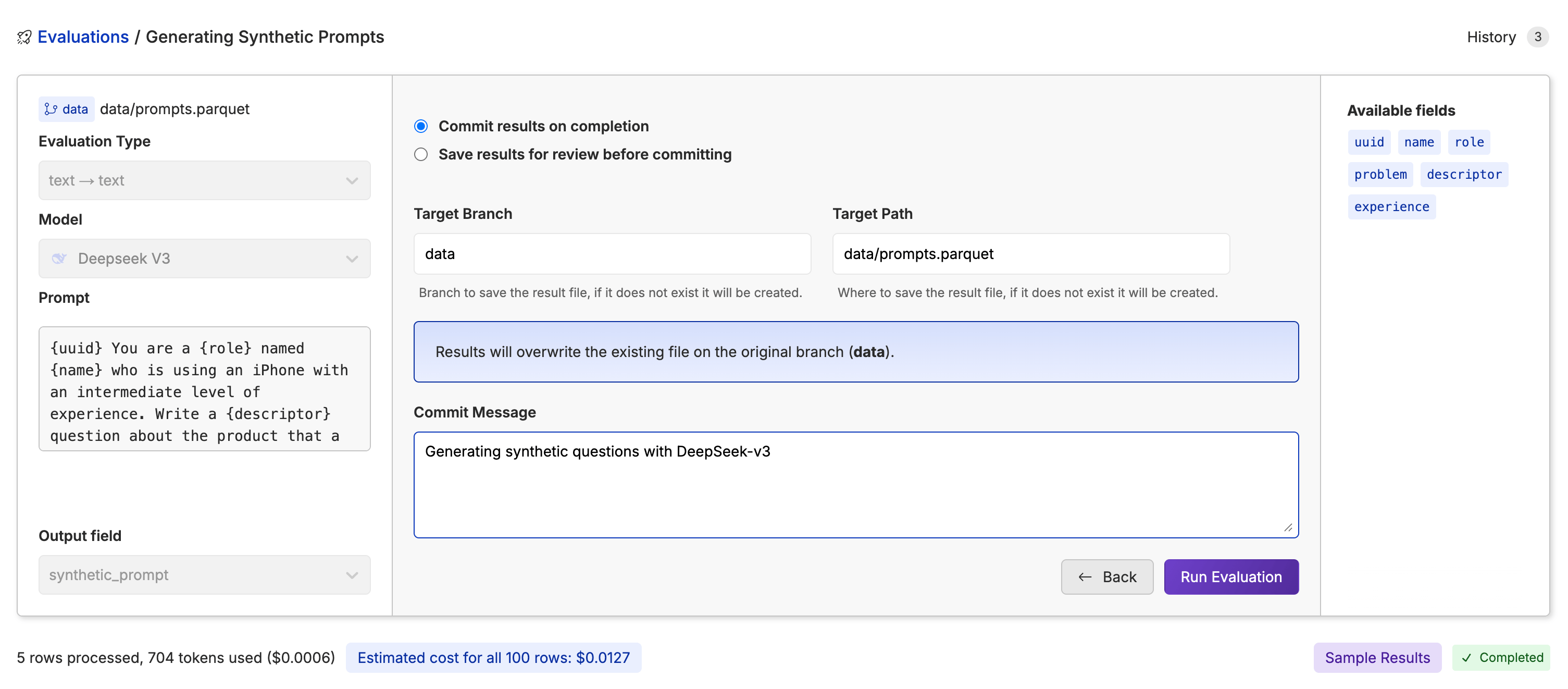 Sit back, grab a coffee ☕️ and Oxen.ai will run the inference in the background.
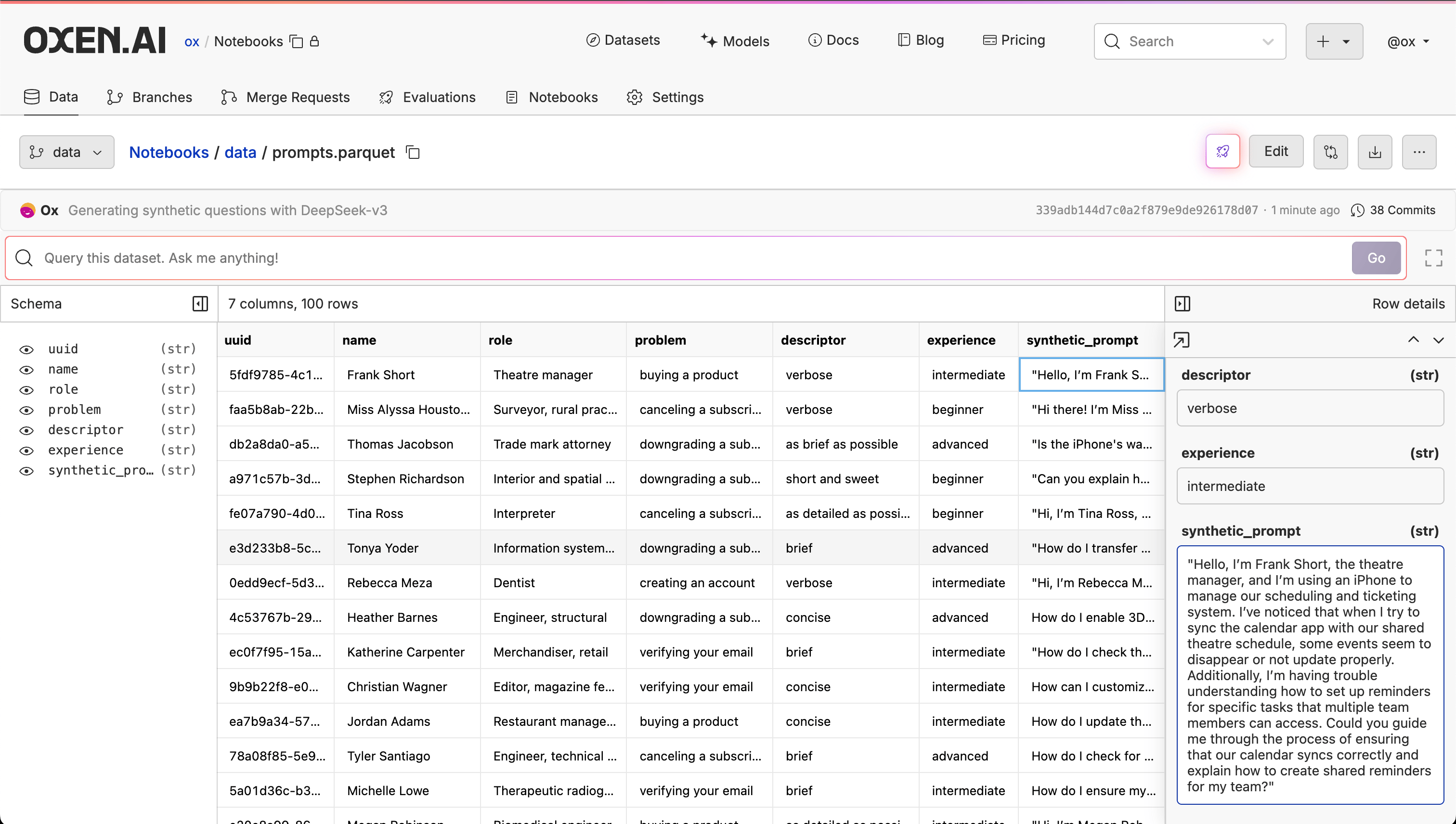
 Once the inference is complete, you can view and share the results with your team 🎉
 You can run the same process again with a new prompt to generate all the responses to the synthetic questions, but we will leave this as an exercise for the reader 🤓 happy generating!